
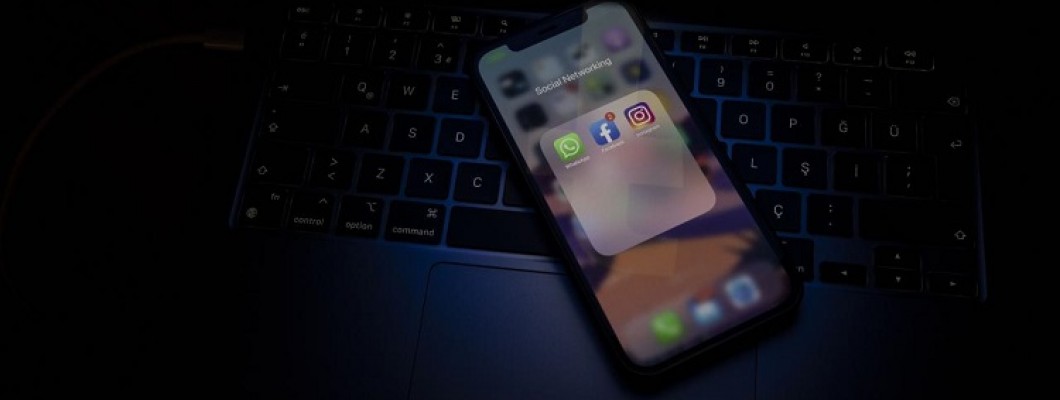
iPhone Animasyonları Nasıl Kapatılır?
iPhone animasyonları, Apple’ın yıllardır iOS deneyiminin bir parçası olarak sunduğu akıcı geçiş efektleridir. Ancak bazı kullanıcılar için bu animasyonlar görsel bir yenilikten ziyade cihazı yavaşlatan bir detay hâline gelebiliyor. Bu nedenle son dönemlerde “iPhone animasyonları nasıl kapatılır?” sorusu oldukça popüler hâle gelmiş durumda.
Apple, kullanıcıların bu konudaki şikâyetlerini değerlendirse de yapılan iyileştirmeler herkes için yeterli olmadı. Dolayısıyla kullanıcıların bir kısmı, daha hızlı ve daha akıcı bir deneyim elde etmek için animasyonları kapatma yoluna gidiyor.
iPhone Animasyonları Nasıl Kapatılır?
Akıcı bir kullanım isteyen kullanıcılar için animasyonları kapatmak oldukça kolay bir işlemdir. Aşağıdaki adımları izleyerek kısa sürede değişikliği yapabilirsiniz:
Ayarlar menüsüne girin.
Erişilebilirlik sekmesine dokunun.
Açılan menüde Hareket bölümüne gidin.
Hareketi Azalt seçeneğini aktif hâle getirin.
Bu işlem sonrasında iPhone’unuzdaki pek çok animasyon sadeleşir veya tamamen devre dışı kalır. Bu da özellikle eski modellerde gözle görülür bir hızlanma sağlayabilir.
Kullanıcılar Neden Animasyonları Kapatıyor?
Telefonun hızlanmasını istemeleri
Pil tüketimini azaltmak
Daha sade bir kullanım tercih etmeleri
Görsel efektlerden hoşlanmamaları
Her ne kadar Apple bu konuda daha optimize çözümler sunma aşamasında olsa da, şimdilik tek etkili yöntem bu ayarı kapatmaktır.
Sonuç: Basit Bir Ayar, Daha Hızlı Bir iPhone
Her kullanıcının beklentisi farklı olabilir. Ancak animasyonları kapatmak, iPhone’un genel kullanım hızında ufak da olsa bir avantaj sunar. Kullanıcı memnuniyetine önem veren Apple’ın bu konuyu geliştirmesi bekleniyor. O zamana kadar animasyonları kapatma seçeneği, hızlı bir geçici çözüm olmaya devam ediyor.















Bir Yorum Yaz