
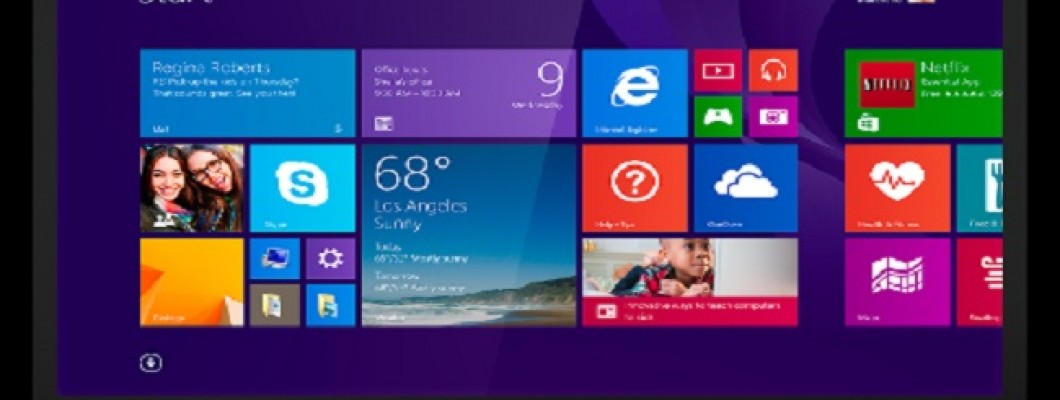
Bilgisayarda Windows Sürümünü Öğrenme
Windows, dünya genelinde en yaygın kullanılan işletim sistemlerinden biridir ve kullanıcıların günlük bilgisayar deneyimini kolaylaştıran pek çok özellikle donatılmıştır. İşletim sistemlerinin temel görevi, bilgisayardaki donanım kaynaklarını yönetmek ve yazılımların sorunsuz çalışmasını sağlamaktır.
Bu yazıda, bilgisayarınızda yüklü olan Windows sürümünü ve versiyon bilgisini nasıl öğrenebileceğinizi adım adım ele alacağız.
İşletim Sistemi Nedir ve Ne İşe Yarar?
İşletim sistemi; bilgisayar donanımı ile kullanıcı arasında köprü görevi gören temel yazılımdır. Sadece masaüstü ve dizüstü bilgisayarlarda değil, tabletler ve akıllı telefonlar gibi pek çok cihazda da aktif olarak kullanılır.
- İşletim sisteminin başlıca görevleri şunlardır:
- Donanım kaynaklarını (RAM, işlemci, disk) yönetmek
- Uygulamaların düzgün çalışmasını sağlamak
- Aynı anda birden fazla işlemi yürütmek
- Kullanıcıya görsel ve işlevsel bir arayüz sunmak
Bilgisayar açıldığında işletim sistemi belleğe yüklenir ve arka planda çok sayıda işlemi eş zamanlı olarak yönetir. Kullanıcılar yalnızca açık olan programları görse de, sistem arka planda sürekli çalışmaya devam eder.
Windows Sürümünü Öğrenme Yöntemleri
Bilgisayarınızda yüklü olan Windows sürümünü öğrenmenin birkaç pratik yolu bulunmaktadır.
1. Bilgisayar Özelliklerinden Windows Sürümünü Öğrenme
- Masaüstünde Bu Bilgisayar veya Bilgisayarım simgesine sağ tıklayın
- Özellikler seçeneğine tıklayın
- Açılan ekranda Windows sürümü (Windows 10, Windows 11 vb.) ve sistem bilgileri görüntülenir
Bu yöntem, Windows sürümünü hızlıca öğrenmek için en sık kullanılan yollardan biridir.
2. Winver Komutu ile Windows Sürümünü Öğrenme
- Klavyeden Win + R tuşlarına basın
- Açılan Çalıştır penceresine winver yazın
- Enter tuşuna basın
Karşınıza çıkan pencerede Windows sürümü, versiyon numarası ve derleme bilgileri detaylı şekilde görüntülenir. Özellikle teknik işlemler ve yazılım uyumluluğu için bu bilgiler oldukça önemlidir.
Windows Sürümünü Bilmek Neden Önemlidir?
- Yazılım ve oyun uyumluluğunu kontrol etmek
- Sürücü güncellemelerini doğru yapmak
- Windows güncellemelerini takip etmek
- Teknik destek alırken doğru bilgi vermek
Windows sürümünü bilmek, bilgisayarınızın performansını ve güvenliğini doğrudan etkileyen önemli bir detaydır.
Sonuç
İşletim sistemi, bilgisayarın temel yapı taşıdır ve donanım ile yazılım arasındaki tüm iletişimi yönetir. Bilgisayarınızda yüklü olan Windows sürümünü öğrenmek oldukça kolaydır ve birkaç adımda gerçekleştirilebilir. Windows sürümünüzü düzenli olarak kontrol etmek, cihazınızdan maksimum verim almanızı sağlar.



















Bir Yorum Yaz