
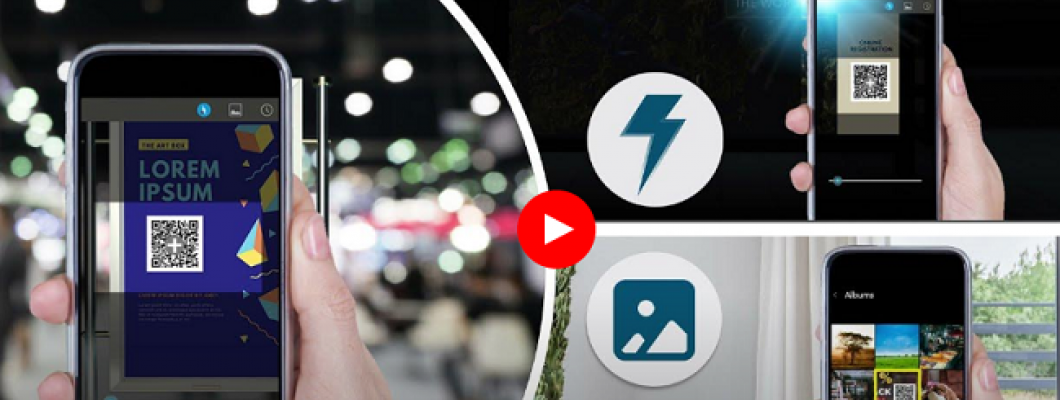
Bilgisayar Üzerinden QR Kod Okuma ve İndirme Rehberi
Bilgisayar kullanıcıları, QR kodlarını nasıl okuyacaklarına dair detaylı bilgiye ihtiyaç duyuyor. Bu yazıda, QR kodlarını bilgisayarınız üzerinden nasıl tarayabileceğinizi adım adım anlatıyoruz. QR kodlarının kullanımı, akıllı telefonların yaygınlaşmasıyla birlikte oldukça artmış olsa da, bu kodları taramak için mutlaka bir akıllı telefona sahip olmanız gerekmiyor. Bilgisayarınızı kullanarak da QR kodlarını okuma imkanına sahipsiniz. QR kodları, Denso Wave firması tarafından otomotiv sektörü için geliştirilmiş olup, günlük hayatta pek çok alanda kolaylık sağlayan kare şeklindeki barkodlardır.
Bilgisayarda QR Kod Nasıl Okunur?
QR kodlarını bilgisayarınızda taramak için CodeTwo QR Code Desktop Reader gibi programlardan yararlanabilirsiniz. Bu yazılım, QR kodlarını iki farklı yöntemle taramanıza olanak tanır. Öncelikle, PNG, JPEG, BMP veya TIFF gibi resim formatlarında kayıtlı QR kodlarını tarayabilirsiniz. Bunun için yapmanız gereken, programda yer alan "From File" (Dosyadan) seçeneğine tıklayarak ilgili görseli seçmektir. Tarama işlemi tamamlandığında, kodun içerdiği bilgiler ekranda görüntülenecektir. Bu bilgileri "Save to File" (Dosyaya Kaydet) seçeneği ile bir metin dosyası olarak kaydedebilirsiniz. Eğer bilgisayarınızda QR kodunun bir görseli yoksa, ekran görüntüsü alarak da tarama işlemini gerçekleştirebilirsiniz.
Web Kamerası ile QR Kod Tarama
Bilgisayarınızda bir web kamerası varsa, bu kamera üzerinden de QR kodlarını tarayabilirsiniz. Bu yöntem, yerel QR tarama özelliği olmayan akıllı telefon veya tabletler için de kullanışlıdır. QR kod tarayıcı araçları, bu tür işlemleri kolaylaştırarak kullanıcıların işlerini hızlı bir şekilde tamamlamalarına yardımcı olur. Ayrıca, QR kodunu yazdırarak veya ekran görüntüsü alarak da tarama işlemini gerçekleştirebilirsiniz.
QR Kodlarının Kullanım Alanları ve Avantajları
QR kodları, günümüzde kısa mesajlar, internet bağlantıları, telefon numaraları veya e-posta adresleri gibi bilgileri paylaşmak için sıkça kullanılmaktadır. Bu kodları dergilerde, reklam panolarında veya çeşitli web sitelerinde görmeniz mümkündür. QR kod okuma uygulamaları, iOS, Android ve Symbian gibi mobil işletim sistemleriyle uyumlu olduğu gibi, bilgisayarlar için de kullanışlı çözümler sunar. Üstelik bu uygulamalar genellikle ücretsizdir. Eğer akıllı telefonunuz yoksa ve bir QR kodun içeriğini öğrenmek istiyorsanız, Windows uyumlu bir QR kod okuyucu programı kullanarak bu işlemi kolayca gerçekleştirebilirsiniz.
QR kodları, hayatı kolaylaştıran pratik bir teknoloji olarak günlük yaşamın vazgeçilmez bir parçası haline geldi. Bilgisayarınız üzerinden bu kodları okumak, özellikle akıllı telefon kullanmayanlar için büyük bir avantaj sağlar.








Bir Yorum Yaz