
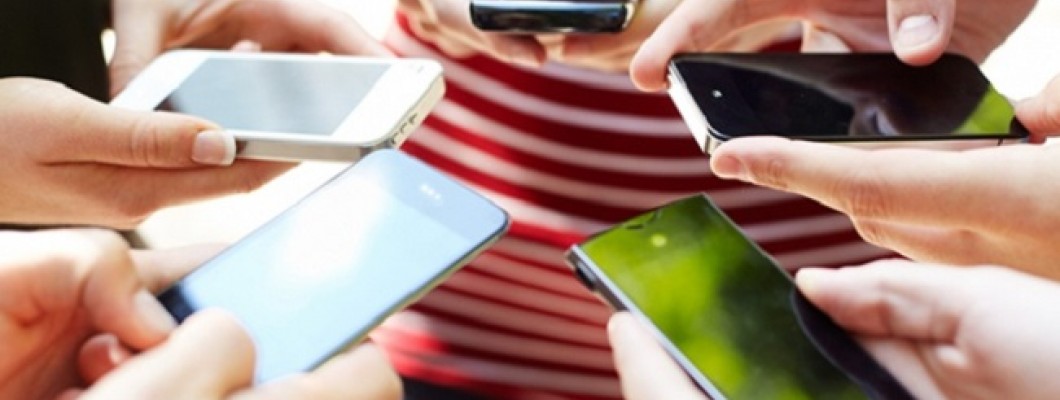
How to Mirror Phone Screen to a Computer?
Mirroring a phone screen to a computer is a practical solution for watching videos, presentations, gaming, or multitasking on a larger display. Many users ask, “How to mirror my phone screen to a computer?” This can be done easily on both Android and iPhone devices using wireless, wired, or third-party software solutions.
Mirroring an Android Phone to a Computer
Android devices such as Samsung Galaxy S24 / S23, Galaxy A series, Xiaomi, Oppo, and Huawei support screen mirroring with ease.
Wireless Screen Mirroring (Miracast)
Most Android phones allow screen mirroring without installing additional apps.
Steps:
Go to Settings > Connections > Screen Mirroring / Smart View on your phone.
On Windows 10 or Windows 11, search for and open the “Connect” app.
Select your computer from the phone’s screen mirroring list.
Your phone screen will appear on the computer instantly.
Mirroring iPhone Screen to a Computer
Mirroring an iPhone screen requires different methods compared to Android devices. iPhone 11, 12, 13, 14, and 15 models support the following options.
Wired Mirroring with Adapter
Lightning Digital AV Adapter (iPhone 14 and earlier)
USB-C to HDMI Adapter (iPhone 15 series)
This method allows direct and stable screen mirroring to a computer or monitor.
Wireless Mirroring with AirPlay
Apple users can take advantage of AirPlay for seamless wireless mirroring.
Supported Devices
Apple TV
AirPlay-enabled Smart TVs
macOS devices (MacBook, iMac)
Simply enable Screen Mirroring from the Control Center and select the target device.
Using Third-Party Apps on Windows
Apps like LonelyScreen, ApowerMirror, and Reflector allow iPhone screen mirroring to Windows PCs via AirPlay support.








Leave a Comment