
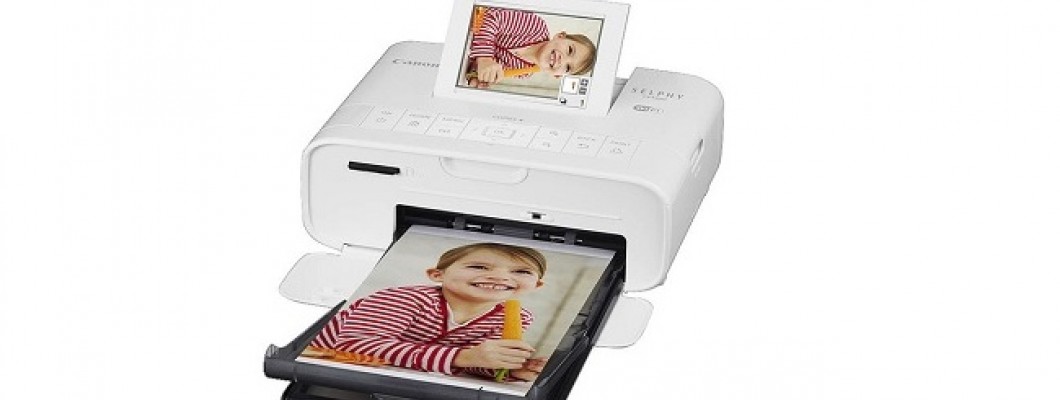
How to Connect a Mobile Phone to a Printer?
Printing directly from a smartphone has become essential for many users. However, the connection method varies depending on the printer model, which leads many people to ask: “How do I connect my phone to a printer?”
There are several ways to connect your smartphone to a printer, including Bluetooth, Wi-Fi, Wi-Fi Direct, USB OTG, and official printer apps.
1. How to Connect a Phone to a Printer (General Methods)
Connecting via Bluetooth
Portable printers often support Bluetooth. Steps:
Open Settings → Bluetooth on your phone.
Enable Bluetooth on the printer.
Pair the printer with the phone.
Open the document → Select Print.
This method requires no Wi-Fi and is ideal for mobile printers.
2. How to Connect a Phone to a Wireless Printer
Most modern printers support Wi-Fi or Wi-Fi Direct, making wireless printing easy.
Wi-Fi Direct Connection
Enable Wi-Fi Direct on the printer.
Go to Settings → Wi-Fi on your phone.
Connect to the printer’s Wi-Fi Direct network.
Print the desired document.
Connecting Through the Same Wi-Fi Network
Connect both your phone and printer to the same Wi-Fi network.
Install the printer’s official app (HP Smart, Epson iPrint, Canon PRINT, etc.).
The app will automatically detect your printer.
Select the file and print.
Perfect for home and office printers.
3. Steps to Connect a Wireless Printer
To add a wireless printer on your phone:
Open Settings → Connected Devices → Printers
Tap Add Printer
Select your wireless printer
Start printing from any app via the Print option
Modern 2025 models often support auto-detection.
4. USB OTG Printing (Wired Method)
For users wanting a stable wired connection:
Connect a USB OTG adapter to your phone.
Plug the printer’s USB cable into the OTG adapter.
The phone will detect the printer automatically.
Print using a supported mobile printing app.
5. Connecting an iPhone to a Printer (AirPrint)
AirPrint makes printing from iPhone extremely easy:
Connect iPhone and printer to the same Wi-Fi network
Open the document
Tap Share → Print → Select Printer → Print
No setup, no drivers — instant printing.
cep telefonu aksesuarları için mağazamızı ziyaret edebilirsiniz.








Leave a Comment